
AdMob Mediation SDK (Android)
Overview
We have 3 part to integrate Appier Mobile SDK through AdMob Mediation SDK for Android
- Ad Server Setting
- Integrating Appier Mobile SDK
- Enabling Test Ads
Current Support Ad Format
- Native Ads
- Native Video Ads
- Banner Ads
- Interstitial Ads
1. Ad Server Setting
Step 1 - Ad Unit Setting
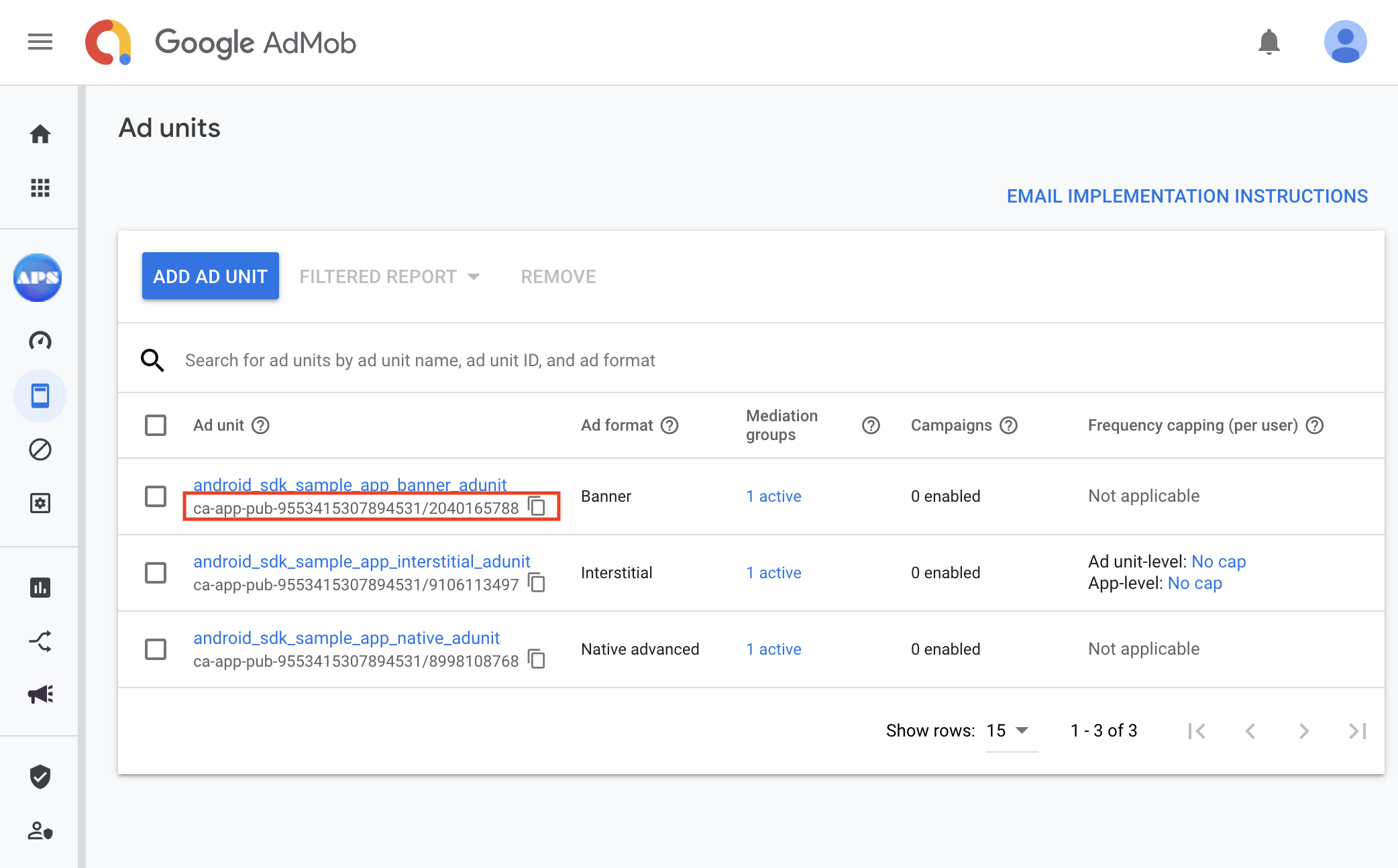
- Get AdMob Ad unit ID for the App
You will need the ad unit ID from AdMob and place it in the Android App. To find out your ad unit ID, go to ad unit page and get the ad unit ID.
Note: This is NOT the ad unit id from Appier.
Step 2 - Line item for Appier Mediation
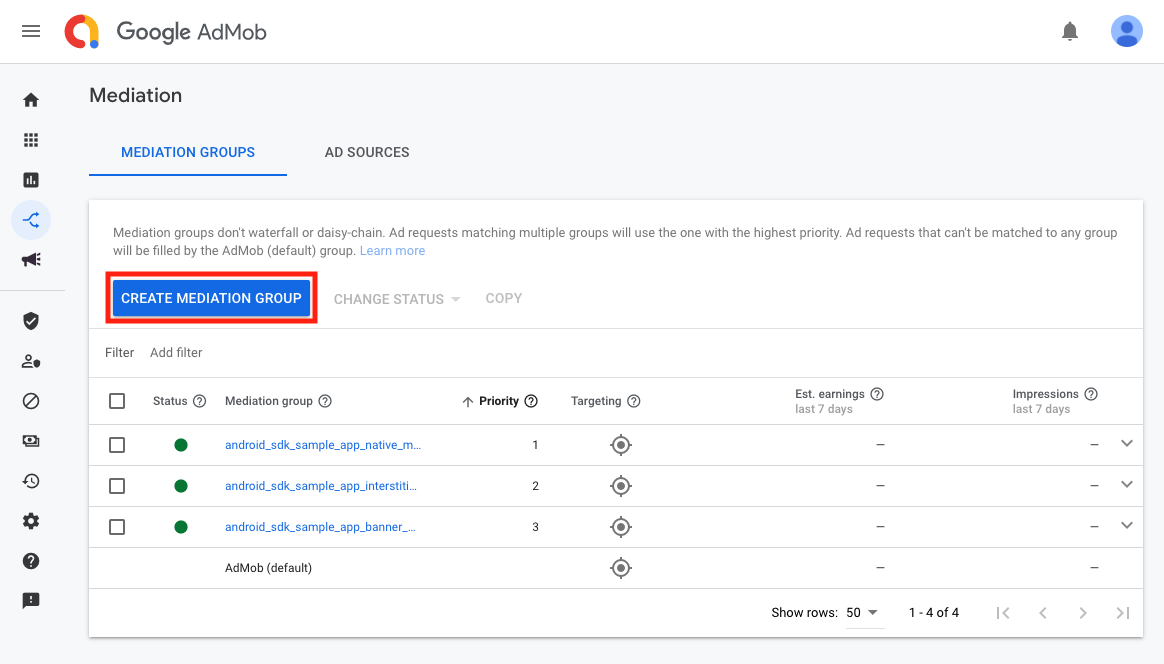
- 2.1 Setup your mediation group
In the Mediation page, please click CREATE MEDIATION GROUP button if you did not have mediation group
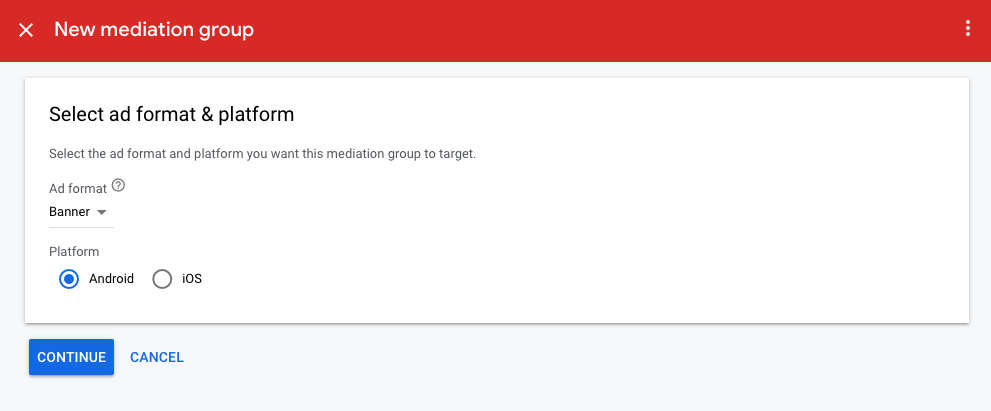
Choose your ad format and Select Android platform. After finish the setting, click CONTINUE button.
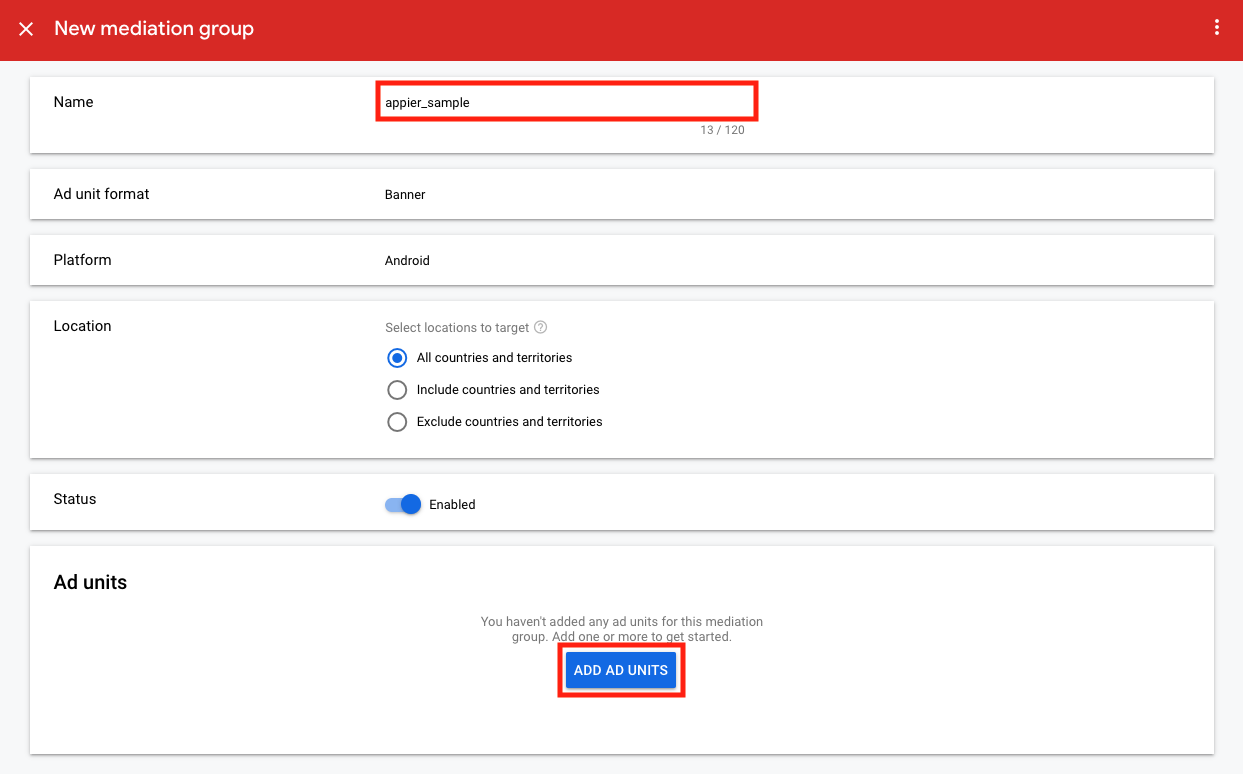
Fill in the mediation group name and add your ad units in the Ad units block. After add your ad unit in the Ad units block, the Ad sources block will appear.
- 2.2 Setup custom event
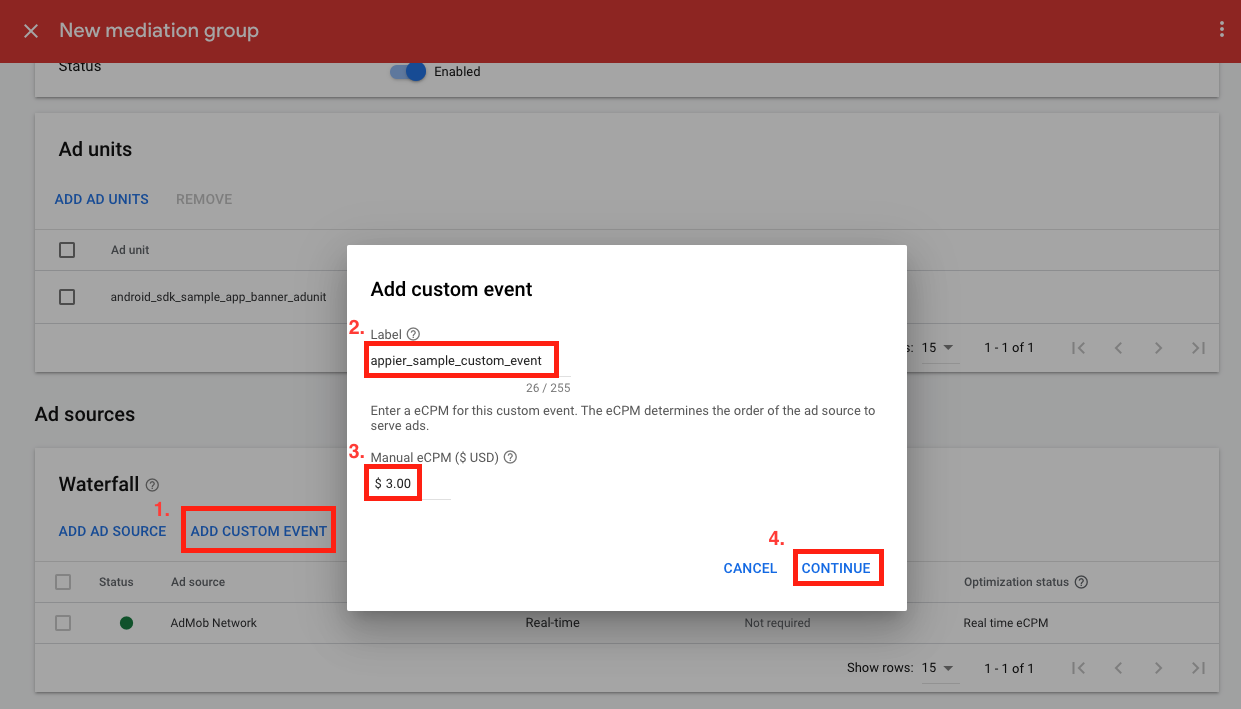
Click ADD CUSTOM EVENT and set your label for Appier custom event. Also, use the price you discussed with Appier Partnership team to set the eCPM.
After all the setting ready, click CONTINUE.
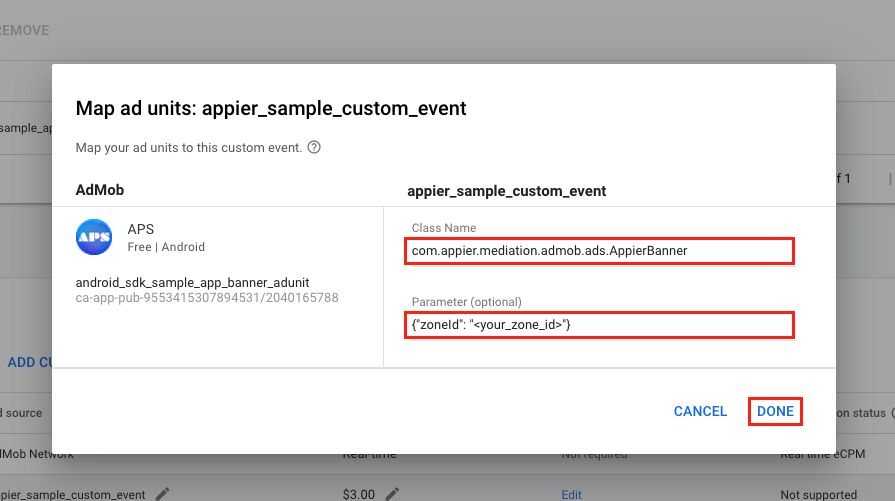
Next, we should set up custom event class name and parameter.
Currently, Appier supports three ad types, and please fill the class name by your ad type:
- Banner: com.appier.mediation.admob.ads.AppierBanner
- Interstitial: com.appier.mediation.admob.ads.AppierInterstitial
- Native advanced: com.appier.mediation.admob.ads.AppierNativeAdapter
For parameter, fill in the json {"zoneId": "<your_zone_id>"}, where zoneId is provided by Appier.
Click DONE when you finish the setting.
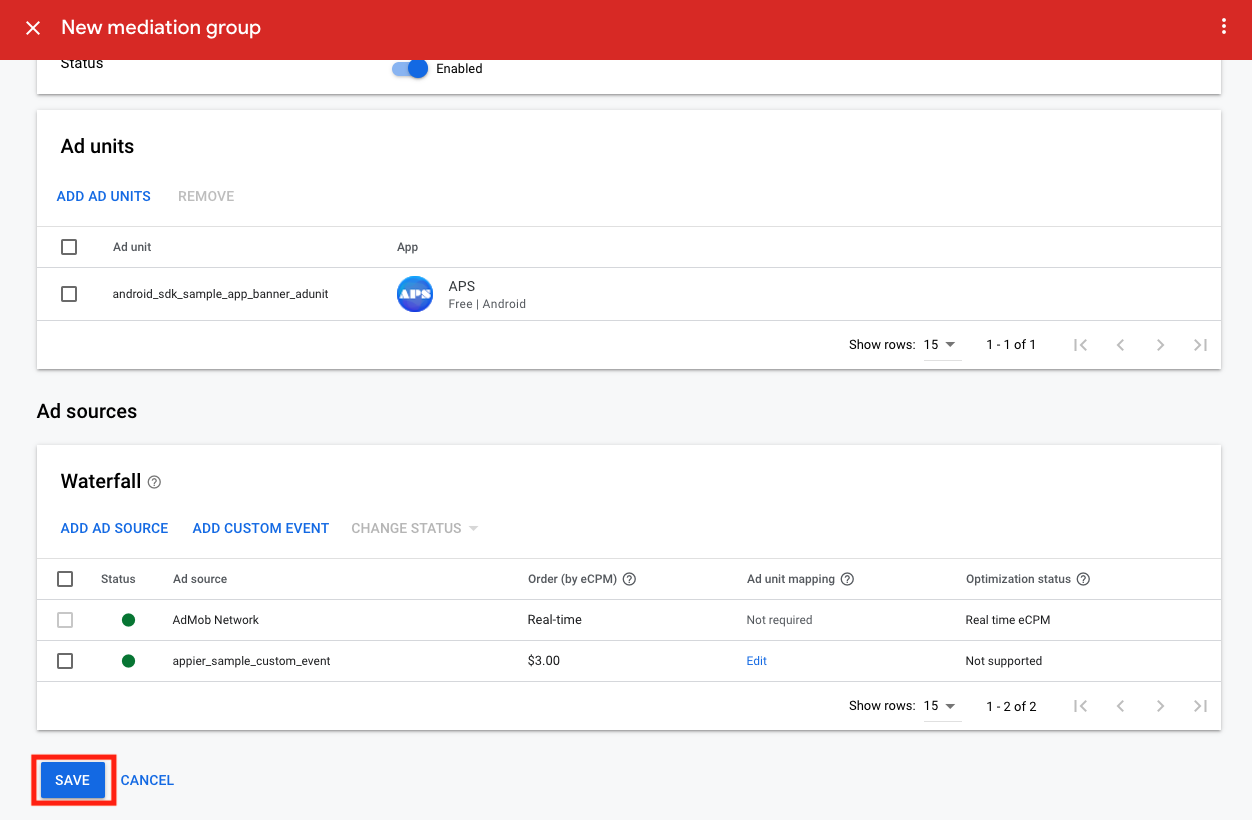
After you finish all of the mediation group setting, you can click SAVE and integrate your Android app with Appier Mobile SDK.
2. Integrating Appier Mobile SDK
In the previous section, we went through the setup of AdMob web UI. I believe you've already had at least one ad unit ID. In this section, we will focus on how to integrate Appier's SDK and start monetizing your app.
Steps Overview
- Prerequisites
- Gradle Configuration
- AdMob Dependency
- Appier Dependencies
- Manifest Configuration
- GDPR Consent
- Ad Format Integration
- Native Ads Integration
- Banner Ads Integration
- Interstitial Ads Integration
Github Repository
Our SDK source is open-source on GitHub: appier/admob-android-mediation.
Step 1 - Prerequisites
- Make sure you are using AdMob Android SDK version >= 25.3.0
- Make sure your app's API level >= 23
Step 2 - Gradle Configuration
2.1 - AdMob Dependency
Please add google to your repositories, and specify AdMob's dependency
repositories {
		// ...
  	google()
}

dependencies {
  	// AdMob SDK
  	implementation 'com.google.android.gms:play-services-ads:25.3.0'
}
2.2 - Appier Dependencies
Please add mavenCentral to your repositories, and specify Appier's dependencies.
repositories {
  	// ...
  	mavenCentral()
}

dependencies {
  	// ...
  	implementation 'com.appier:ads-android:2.3.0'
  	implementation 'com.appier:ads-admob-mediation:2.3.0'
}
Step 3 - Manifest Configuration
To prevent your app from crashing, following are the recommended manifest configurations.
<manifest ...>
  <uses-permission android:name="android.permission.INTERNET" />
  <uses-permission android:name="android.permission.ACCESS_NETWORK_STATE" />

  <!--  Required for displaying floating window  -->
  <uses-permission android:name="android.permission.SYSTEM_ALERT_WINDOW" />

  <application
    ...
    android:networkSecurityConfig="@xml/network_security_config">

    <uses-library android:name="org.apache.http.legacy" android:required="false" />

		<!-- [AdMob] Application ID -->
    <meta-data
        android:name="com.google.android.gms.ads.APPLICATION_ID"
        android:value="ca-app-pub-xxxxxxxxxxxxxxxx~yyyyyyyyyy"/>
  </application>
</manifest>
You also need to add xml/network_security_config.xml into resources.
<?xml version="1.0" encoding="utf-8"?>
<network-security-config>
  <base-config cleartextTrafficPermitted="true" />
</network-security-config>
Step 4 - GDPR Consent (Recommended)
In consent to GDPR, we strongly suggest the consent status to our SDK via Appier.setGDPRApplies() so that we will track user's personal information. Without this configuration, Appier will NOT apply GDPR by default. Note that this will impact advertising performance thus impacting revenue.
import com.appier.ads.Appier;

public class MainActivity extends AppCompatActivity {
  	@Override
    protected void onCreate(Bundle savedInstanceState) {
      	// ...
      	Appier.setGDPRApplies(true);
    }
}
Step 5 - Ad Format Integration
Overview
- 5.1 - Native Ads
- 5.2 - Banner Ads
- 5.3 - Interstitial Ads
5.1 - Native Ads Integration
Starting with version 2.3.0, Appier supports native image and native video ads through AdMob mediation. Both formats use the same ad-loading flow. Your layout should include an ImageView for static images and a MediaView for video.
Before loading ads, configure the Appier native mediation entry with:
- Class Name: com.appier.mediation.admob.ads.AppierNativeAdapter
- Parameter: {"zoneId": "<your_zone_id_from_appier>"}
Use the AdMob ad unit ID in your app. The Appier zone ID is configured in the mediation parameter.
Native video requires AppierNativeAdapter.
The legacy com.appier.mediation.admob.ads.AppierNative entry does not support native video.
Prepare Ad View
Create res/layout/template_admob_native_ad.xml using com.google.android.gms.ads.nativead.NativeAdView as the root.
The following layout places the static image and video in the same media area. Only one is displayed at a time. You can customize the layout to match your app.
<?xml version="1.0" encoding="utf-8"?>
<com.google.android.gms.ads.nativead.NativeAdView
    xmlns:android="http://schemas.android.com/apk/res/android"
    android:layout_width="match_parent"
    android:layout_height="wrap_content">

    <LinearLayout
        android:layout_width="match_parent"
        android:layout_height="wrap_content"
        android:orientation="vertical"
        android:padding="8dp">

        <TextView
            android:layout_width="wrap_content"
            android:layout_height="wrap_content"
            android:text="Ad" />

        <ImageView
            android:id="@+id/native_privacy_information_icon_image"
            android:layout_width="36dp"
            android:layout_height="36dp"
            android:layout_gravity="end"
            android:contentDescription="Privacy information"
            android:padding="8dp" />

        <ImageView
            android:id="@+id/native_icon_image"
            android:layout_width="56dp"
            android:layout_height="56dp"
            android:contentDescription="Advertiser icon" />

        <TextView
            android:id="@+id/native_title"
            android:layout_width="match_parent"
            android:layout_height="wrap_content"
            android:textStyle="bold" />

        <TextView
            android:id="@+id/native_text"
            android:layout_width="match_parent"
            android:layout_height="wrap_content" />

        <FrameLayout
            android:layout_width="match_parent"
            android:layout_height="182dp">

            <ImageView
                android:id="@+id/native_main_image"
                android:layout_width="match_parent"
                android:layout_height="match_parent"
                android:contentDescription="Ad image"
                android:scaleType="centerCrop"
                android:visibility="gone" />

            <com.google.android.gms.ads.nativead.MediaView
                android:id="@+id/native_media_view"
                android:layout_width="match_parent"
                android:layout_height="match_parent"
                android:visibility="gone" />
        </FrameLayout>

        <Button
            android:id="@+id/native_cta"
            android:layout_width="wrap_content"
            android:layout_height="wrap_content" />

    </LinearLayout>
</com.google.android.gms.ads.nativead.NativeAdView>
All native ad assets should remain inside the NativeAdView. Register the MediaView before calling setNativeAd(). For more details, see Google's Display a native ad guide.
Load Ad
The following example loads a native ad into a ViewGroup container in your Fragment's layout.
Keep references to the loaded NativeAd and NativeAdView so they can be released when replaced or when the Fragment's view is destroyed. Ads returned by an outdated request are destroyed immediately.
Use addNetworkExtrasBundle() with AppierNativeAdapter.class to pass the AdMob ad unit ID to Appier.
To render Appier's native ads via AdMob mediation, you need to provide <your_ad_unit_id_from_admob> and <your_zone_id_from_appier>. You can either pass through localExtras or serverExtras.
import android.content.Context;
import android.os.Bundle;
import android.view.View;
import android.view.ViewGroup;

import com.appier.ads.common.AppierDataKeys;
import com.appier.mediation.admob.ads.AppierNativeAdapter;
import com.google.android.gms.ads.AdLoader;
import com.google.android.gms.ads.AdRequest;
import com.google.android.gms.ads.nativead.NativeAd;
import com.google.android.gms.ads.nativead.NativeAdView;

// Fields in your Fragment.
private NativeAd currentNativeAd;
private NativeAdView currentNativeAdView;
private int currentLoadGeneration;

// Call loadNativeAd(mAdContainer) after creating the Fragment's view.
private void loadNativeAd(ViewGroup adContainer) {
    Context context = getContext();
    View fragmentView = getView();
    if (context == null || fragmentView == null) {
        return;
    }

    final int loadGeneration = ++currentLoadGeneration;
    releaseCurrentAd();
    adContainer.removeAllViews();

    final String adUnitId = "<your_ad_unit_id_from_admob>";

    Bundle localExtras = new Bundle();
    localExtras.putString(AppierDataKeys.AD_UNIT_ID_LOCAL, adUnitId);

    AdLoader adLoader = new AdLoader.Builder(context, adUnitId)
            .forNativeAd(nativeAd -> {
                // Ignore results from an outdated request or destroyed view.
                if (loadGeneration != currentLoadGeneration
                        || !isAdded()
                        || getView() != fragmentView) {
                    nativeAd.destroy();
                    return;
                }

                releaseCurrentAd();
                adContainer.removeAllViews();

                NativeAdView adView = (NativeAdView) getLayoutInflater()
                        .inflate(
                                R.layout.template_admob_native_ad,
                                adContainer,
                                false
                        );

                currentNativeAd = nativeAd;
                currentNativeAdView = adView;

                populateUnifiedNativeAdView(nativeAd, adView);
                adContainer.addView(adView);
            })
            .build();

    adLoader.loadAd(new AdRequest.Builder()
            .addNetworkExtrasBundle(AppierNativeAdapter.class, localExtras)
            .build());
}
Destroy Ad
Destroy the current ad and its view when they are no longer needed. Before destroying the Fragment's view, invalidate pending requests so any ads returned afterward are also released.
private void releaseCurrentAd() {
    if (currentNativeAd != null) {
        currentNativeAd.destroy();
        currentNativeAd = null;
    }

    if (currentNativeAdView != null) {
        currentNativeAdView.destroy();
        currentNativeAdView = null;
    }
}

@Override
public void onDestroyView() {
    currentLoadGeneration++;
    releaseCurrentAd();
    super.onDestroyView();
}
Populate Ad Assets
Register the asset views with NativeAdView, including the MediaView, before calling setNativeAd().
For Appier native ads, getImages() contains different assets depending on the format:
| Format | Image assets |
|---|---|
| Native image | Privacy information icon at index 0, main image at index 1 |
| Native video | Privacy information icon at index 0; video is rendered through MediaView |
The Google native ad wrapper may expose Appier's video view without returning MediaContent. The following example therefore uses the single-image asset list as a fallback when identifying Appier video ads. This fallback should not be applied to other ad sources.
import android.view.View;
import android.widget.ImageView;
import android.widget.TextView;

import com.appier.mediation.admob.AppierAdapterConfiguration;
import com.google.android.gms.ads.nativead.MediaView;
import com.google.android.gms.ads.nativead.NativeAd;
import com.google.android.gms.ads.nativead.NativeAdView;

import java.util.List;

private void populateUnifiedNativeAdView(
        NativeAd nativeAd,
        NativeAdView adView
) {
    TextView headlineView = adView.findViewById(R.id.native_title);
    TextView bodyView = adView.findViewById(R.id.native_text);
    TextView ctaView = adView.findViewById(R.id.native_cta);
    ImageView iconView = adView.findViewById(R.id.native_icon_image);
    ImageView imageView = adView.findViewById(R.id.native_main_image);
    ImageView privacyView = adView.findViewById(
            R.id.native_privacy_information_icon_image
    );
    MediaView mediaView = adView.findViewById(R.id.native_media_view);

    adView.setHeadlineView(headlineView);
    adView.setBodyView(bodyView);
    adView.setCallToActionView(ctaView);
    adView.setIconView(iconView);
    adView.setImageView(imageView);
    adView.setMediaView(mediaView);

    headlineView.setText(nativeAd.getHeadline());

    bodyView.setText(nativeAd.getBody());
    bodyView.setVisibility(
            nativeAd.getBody() != null ? View.VISIBLE : View.GONE
    );

    ctaView.setText(nativeAd.getCallToAction());
    ctaView.setVisibility(
            nativeAd.getCallToAction() != null ? View.VISIBLE : View.GONE
    );

    if (nativeAd.getIcon() != null) {
        iconView.setImageDrawable(nativeAd.getIcon().getDrawable());
        iconView.setVisibility(View.VISIBLE);
    } else {
        iconView.setVisibility(View.GONE);
    }

    // Hide both until the appropriate media asset is selected.
    imageView.setVisibility(View.GONE);
    mediaView.setVisibility(View.GONE);
    privacyView.setVisibility(View.GONE);

    List<NativeAd.Image> images = nativeAd.getImages();
    boolean isAppier = AppierAdapterConfiguration.getAdvertiserName()
            .equals(nativeAd.getAdvertiser());

    if (isAppier) {
        adView.setAdvertiserView(privacyView);

        if (images != null && !images.isEmpty()) {
            privacyView.setImageDrawable(images.get(0).getDrawable());
            privacyView.setVisibility(View.VISIBLE);
        }

        boolean hasVideo = nativeAd.getMediaContent() != null
                && nativeAd.getMediaContent().hasVideoContent();

        // Appier-specific fallback when MediaContent is unavailable.
        hasVideo = hasVideo || (images != null && images.size() == 1);

        if (hasVideo) {
            mediaView.setVisibility(View.VISIBLE);
        } else if (images != null && images.size() > 1) {
            imageView.setImageDrawable(images.get(1).getDrawable());
            imageView.setVisibility(View.VISIBLE);
        }
    } else {
        // Standard media rendering for other native ad sources.
        if (nativeAd.getMediaContent() != null) {
            mediaView.setMediaContent(nativeAd.getMediaContent());
            mediaView.setVisibility(View.VISIBLE);
        } else if (images != null && !images.isEmpty()) {
            imageView.setImageDrawable(images.get(0).getDrawable());
            imageView.setVisibility(View.VISIBLE);
        }
    }

    adView.setNativeAd(nativeAd);
    adView.setVisibility(View.VISIBLE);
}
Your app only needs to register and display the MediaView. It does not need to create a video player or manually start playback.
5.2 - Banner Ads Integration
To render Appier's banner ads via AdMob mediation, you need to specify the width and height of ad unit to load ads with suitable sizes. You can either pass through localExtras or serverExtras.
import com.appier.ads.common.AppierDataKeys;
import com.appier.mediation.admob.ads.AppierBanner;
import com.google.android.gms.ads.AdView;

// ...
Bundle localExtras = new Bundle();
localExtras.putInt(AppierDataKeys.AD_WIDTH_LOCAL, 300);
localExtras.putInt(AppierDataKeys.AD_HEIGHT_LOCAL, 250);
localExtras.putString(AppierDataKeys.AD_UNIT_ID_LOCAL, "<your_ad_unit_id_from_admob>");

AdView adView = getView().findViewById(R.id.admob_banner_ad);

// Load Ad
adView.loadAd(new AdRequest.Builder()
        .addCustomEventExtrasBundle(AppierBanner.class, localExtras)
        .build());
You also need to define the adSize and adUnitId otherwise the ad would not display correctly.
<com.google.android.gms.ads.AdView
    android:id="@+id/admob_banner_ad"
    android:layout_width="300dp"
    android:layout_height="250dp"
    ads:adSize="MEDIUM_RECTANGLE"
    ads:adUnitId="<your_ad_unit_id_from_admob>">
</com.google.android.gms.ads.AdView>
5.3 - Interstitial Ads Integration
To render Appier's interstitial ads via AdMob mediation, you need to specify the width and height of ad unit to load ads with suitable sizes. You can either pass through localExtras or serverExtras.
Bundle localExtras = new Bundle();
localExtras.put(AppierDataKeys.AD_WIDTH_LOCAL, 320);
localExtras.put(AppierDataKeys.AD_HEIGHT_LOCAL, 480);
localExtras.putString(AppierDataKeys.AD_UNIT_ID_LOCAL, "<your_ad_unit_id_from_admob>");
InterstitialAd interstitialAd = new InterstitialAd(context);

interstitialAd.setAdUnitId("<your_ad_unit_id_from_admob>");

// Load Ad
mInterstitialAd.loadAd(new AdRequest.Builder()
        .addCustomEventExtrasBundle(AppierInterstitial.class, mLocalExtras)
        .build());
Enable Testing Mode
To make developers test the SDK integration easily, you can enable test mode globally via Appier.setTestMode. In test mode, Appier SDK by default will force bid. You can also set to different Appier.TestMode to ensure SDK's behavior.
import com.appier.ads.Appier;

Appier.setTestMode(true);  // Always get sample ads. Same as Appier.TestMode.BID
Appier.setTestMode(false); // Turn off testMode. Same as Appier.TestMode.FALSE.

Appier.setTestMode(Appier.TestMode.FALSE);
Appier.setTestMode(Appier.TestMode.BID);
Appier.setTestMode(Appier.TestMode.NO_BID);
Updated 5 days ago