
GAM Mediation SDK (Android)
Overview
The Appier Ads SDK supports Google Ad Manager (GAM) mediation. This page covers the steps required to start using the Appier Ads SDK for Android with GAM:
- Setting Up Appier as a Custom Event in GAM
- Appier Ads SDK Integration
Supported Ad Formats
- Native Ads (including native video)
Setting Up Appier as a Custom Event in GAM
This section walks you through creating a yield partner, a yield group, and a custom event in GAM from scratch, so that the Appier Ads SDK can serve client-side ads and optimize yield.
Prerequisites
Before you configure GAM, make sure you have obtained your zone ID from the Appier team.
Step 1: Create a Yield Partner
First, add Appier as an ad network company in GAM.
- Sign in to Google Ad Manager.
- In the left menu, go to Admin > Companies.
- Click New company and select Ad network.
- Enter the company details:
- Name: Enter
AppierAdsSDK(orAppier_Network). - Select an ad network: Enter
Appier - Mediation: Active
- Name: Enter
- Click Save.
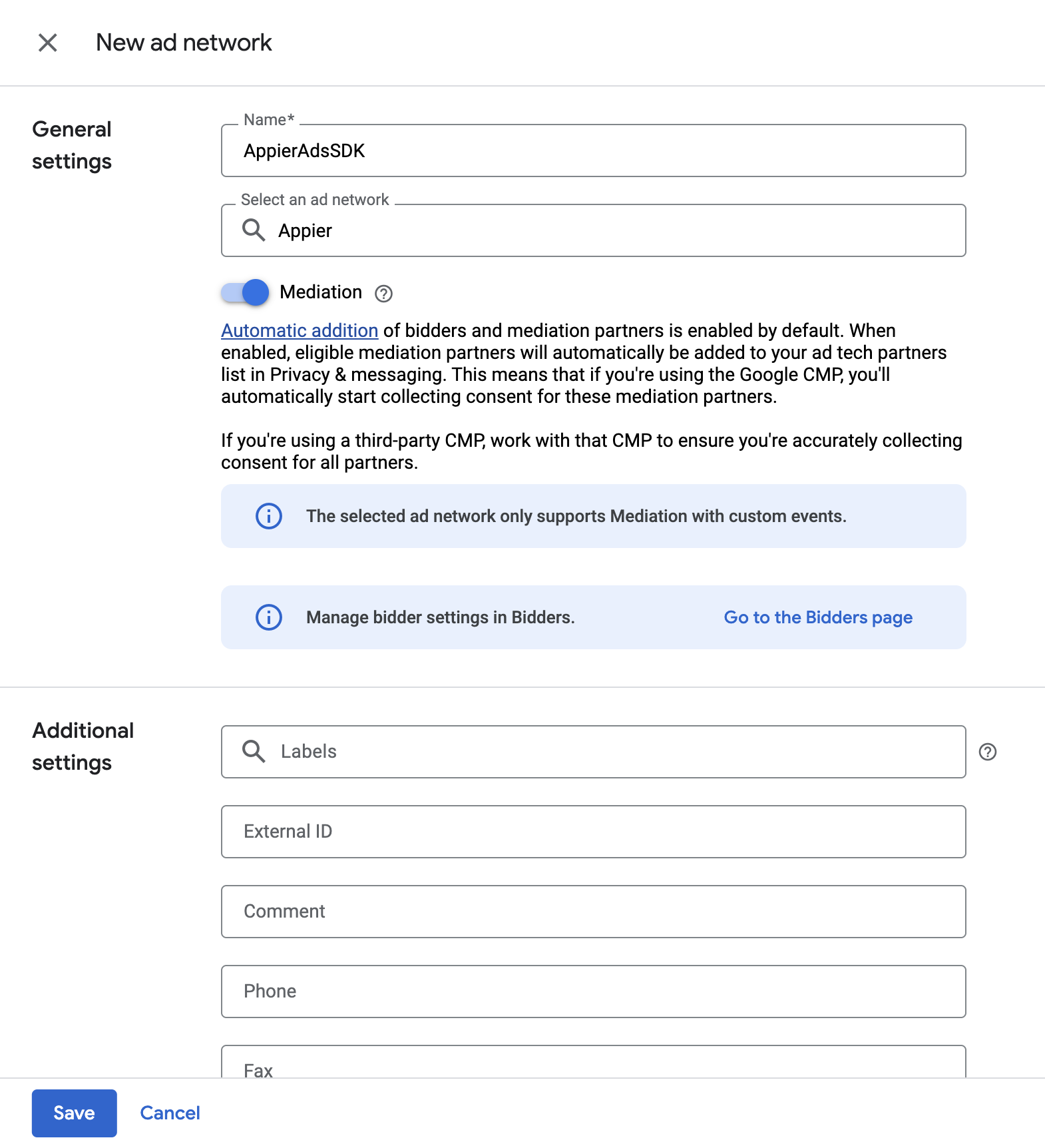
Step 2: Create a Yield Group
A yield group is how GAM manages the client-side mediation waterfall.
- In the left menu, go to Delivery > Yield groups.
- Click New yield group.
- Fill in the Yield group details:
- Yield group name: Enter a name that is easy to identify (for example,
AppierAds_Android_Native). - Status: Active.
- Ad format: Select Banner, Interstitial, Native Custome Rendering, or Rewarded
- Inventory Type: Select Mobile app.
- Yield group name: Enter a name that is easy to identify (for example,
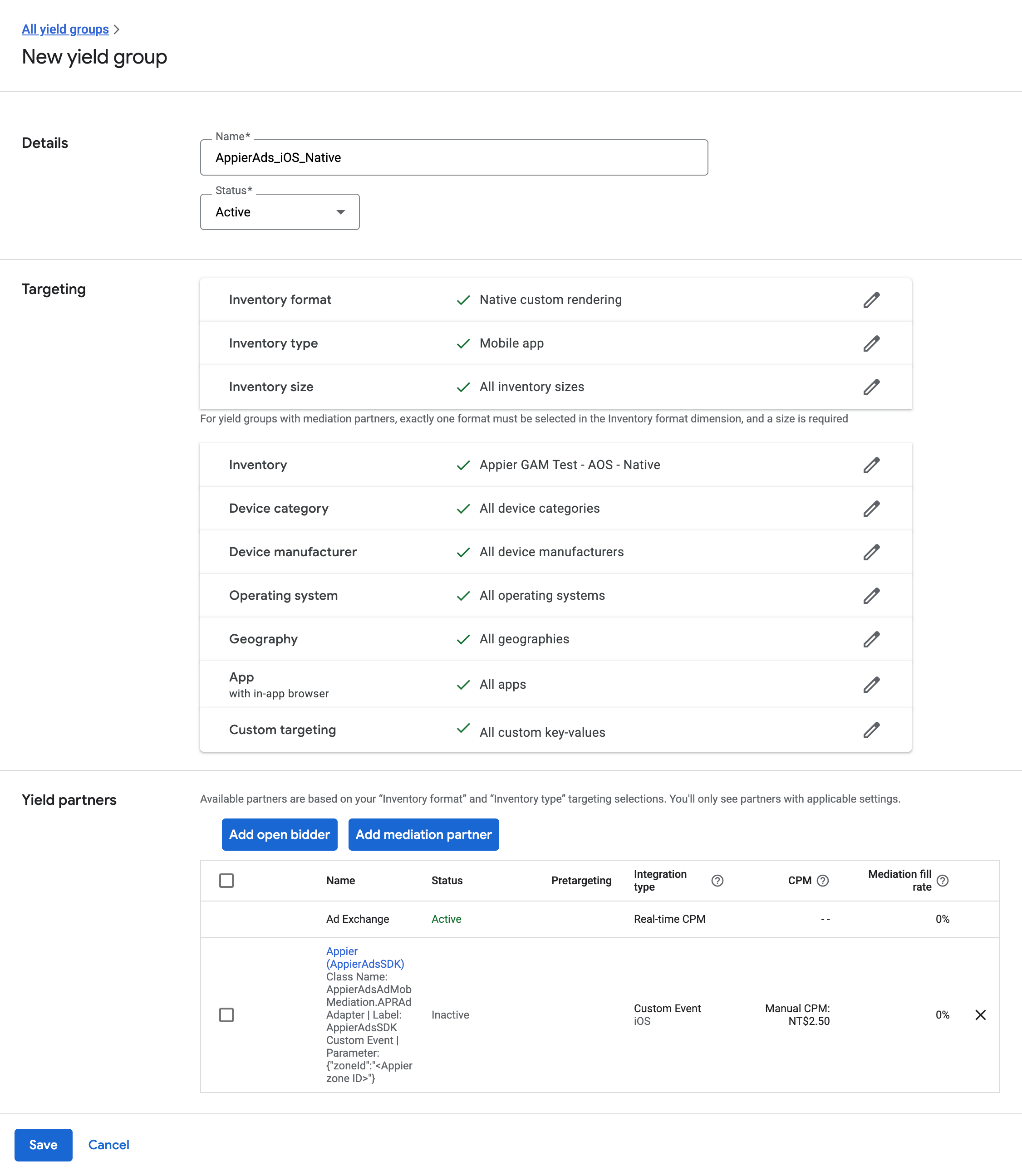
Step 3: Set Up Targeting
On the same yield group page, scroll down to the Targeting section and choose what this yield group applies to:
- Inventory: Click Ad units, then search for and select the GAM ad units that should load Appier ads.
- Operating system: Select Android. We recommend creating separate yield groups for iOS and Android.
Step 4: Add a Custom Event
This is the most important step: it lets GAM invoke the Appier adapter inside your app.
- At the bottom of the yield group page, find the Yield partners section.
- Click Add yield partner.
- Enter the partner and integration details:
-
Yield partner: Search for and select AppierAdsSDK, which you created in Step 1.
-
Platform: Select Android.
-
- Configure the custom event parameters:
- Label: Customize Event Label (Example: AppierAdsSDK Custom Event)
- Class Name: Enter the full class name of the Appier GAM adapter. It is case-sensitive.
- Native/Native Video Ad:
com.appier.mediation.admob.ads.AppierNativeAdapter
- Native/Native Video Ad:
- Parameter: Enter the placement parameters provided by Appier, in JSON format.
- Example:
{"zoneId":"<Appier zone ID>"}
- Example:
- Default CPM (Value CPM): Enter your estimated eCPM floor (for example, $2.50). GAM uses this value to rank the waterfall.
- Click Done, then click Save at the bottom of the yield group page.
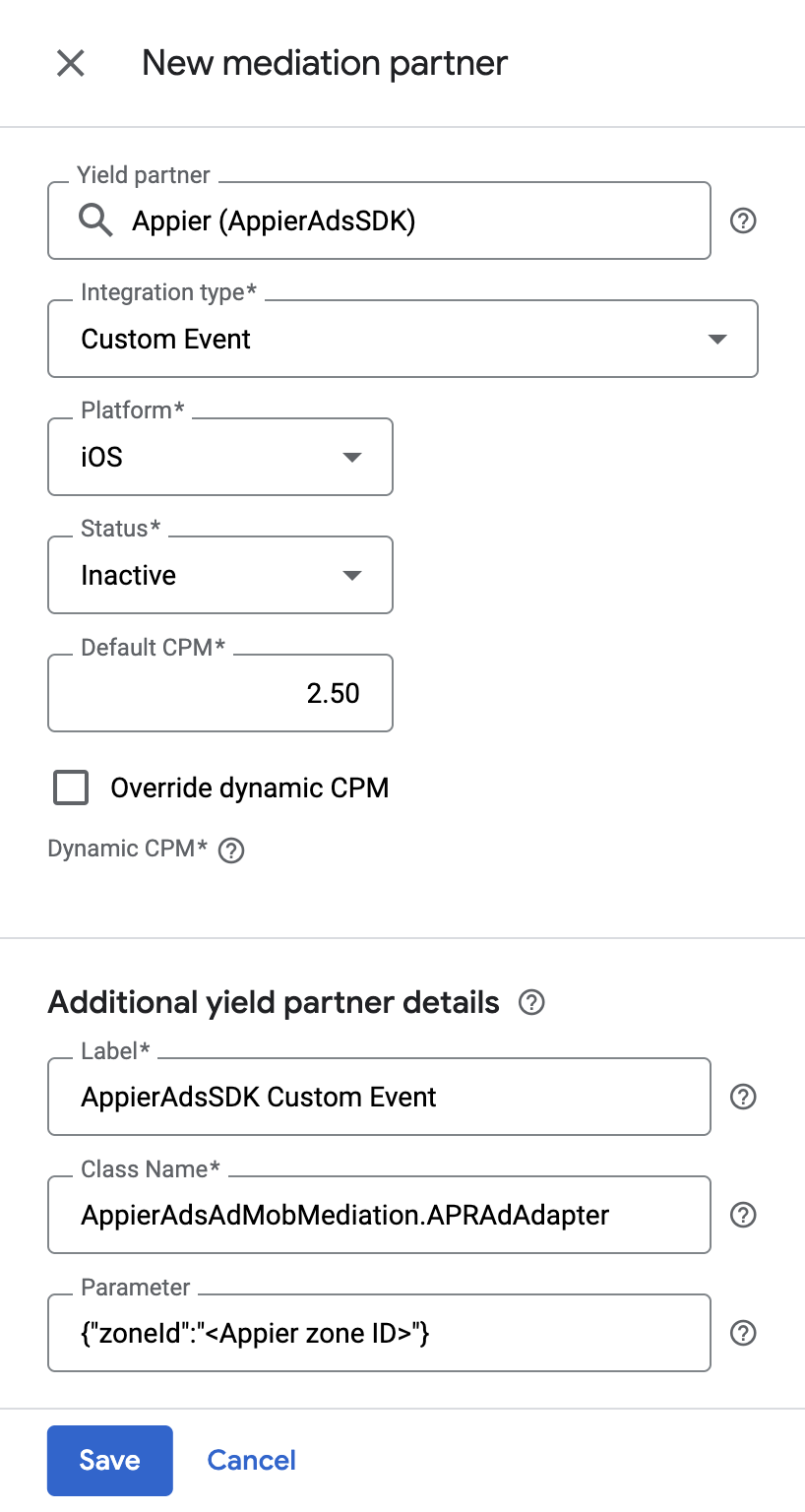
Step 5: Verification
After setup, verify that the Appier Ads SDK is working:
- Check the GAM ad response: Open the app, trigger an ad request, and watch Logcat to confirm that GAM calls the Appier custom event class.
- Use GAM Ad Inspector: Shake the test device to open Ad Inspector, go to Single Network Testing, and select AppierAdsSDK to confirm that production creatives render correctly.
Appier Ads SDK Integration
You should now have at least one GAM ad unit and an Appier custom event. This section shows how to integrate the Appier Ads SDK into your app and start monetizing.
Steps Overview
- Prerequisites
- Gradle Configuration
- AdMob Dependency
- Appier Dependencies
- Manifest Configuration
- GDPR Consent (Recommended)
- Native Ads Integration
GitHub Repository
The mediation adapter source is open-sourced on GitHub: appier/admob-android-mediation.
Step 1 - Prerequisites
- Use Google Mobile Ads SDK version 17.0.0 or higher.
- Set your app's minimum API level to 18 or higher.
Step 2 - Gradle Configuration
2.1 - AdMob Dependency
Add google() to your repositories and add the AdMob dependency.
repositories {
    // ...
    google()
}

dependencies {
    // AdMob SDK
    implementation 'com.google.android.gms:play-services-ads:25.3.0'
}
2.2 - Appier Dependencies
Add mavenCentral() to your repositories and add the Appier dependencies.
repositories {
    // ...
    mavenCentral()
}

dependencies {
    // ...
    implementation 'com.appier:ads-android:2.3.0'
    implementation 'com.appier:ads-admob-mediation:2.3.0'
}
Step 3 - Manifest Configuration
We recommend the following manifest configuration:
<manifest ...>
  <uses-permission android:name="android.permission.INTERNET" />
  <uses-permission android:name="android.permission.ACCESS_NETWORK_STATE" />

  <!--  Required for displaying floating window  -->
  <uses-permission android:name="android.permission.SYSTEM_ALERT_WINDOW" />

  <application
    ...
    android:networkSecurityConfig="@xml/network_security_config">

    <uses-library android:name="org.apache.http.legacy" android:required="false" />

		<!-- [AdMob] Application ID -->
    <meta-data
        android:name="com.google.android.gms.ads.APPLICATION_ID"
        android:value="ca-app-pub-xxxxxxxxxxxxxxxx~yyyyyyyyyy"/>
  </application>
</manifest>
Also add xml/network_security_config.xml to your resources:
<?xml version="1.0" encoding="utf-8"?>
<network-security-config>
  <base-config cleartextTrafficPermitted="true" />
</network-security-config>
Step 4 - GDPR Consent (Recommended)
To comply with GDPR, we strongly recommend passing the user's consent status to the Appier Ads SDK through Appier.setGDPRApplies(), so that Appier knows whether the user's personal information can be used. Without this setting, Appier does NOT apply GDPR by default. Note that ads served without personal information perform worse, which lowers revenue.
import com.appier.ads.Appier;

public class MainActivity extends AppCompatActivity {
    @Override
    protected void onCreate(Bundle savedInstanceState) {
      	// ...
      	Appier.setGDPRApplies(true);
    }
}
Step 5 - Native Ads Integration
- Create an XML layout for the ad. Its root element must be a
NativeAdView. See the following template_gam_native_ad.xml for an example.<com.google.android.gms.ads.nativead.NativeAdView xmlns:android="http://schemas.android.com/apk/res/android" android:layout_width="match_parent" android:layout_height="wrap_content"> <LinearLayout android:orientation="vertical" ... > <LinearLayout android:orientation="horizontal" ... > <ImageView android:id="@+id/ad_app_icon" ... /> <TextView android:id="@+id/ad_headline" ... /> </LinearLayout> // Other assets such as image or media view, call to action, etc follow. ... </LinearLayout> </com.google.android.gms.ads.nativead.NativeAdView> - Define an
AdListenerfor your ad. Then build an ad loader with your GAM ad unit ID (<ad_unit_id_from_gam>) and load the ad, as shown inloadAd()below.import com.google.android.gms.ads.AdListener; import com.google.android.gms.ads.AdLoader; import com.google.android.gms.ads.AdRequest; import com.google.android.gms.ads.LoadAdError; import com.google.android.gms.ads.nativead.NativeAdView; void loadAd() { // Define the ad listener AdListener nativeAdListener = new AdListener() { @Override public void onAdFailedToLoad(@NonNull LoadAdError loadAdError) { // Deal with failed ads } @Override public void onAdClicked() { // Deal with clicks } @Override public void onAdOpened() { // Deal with opened ads } @Override public void onAdClosed() { // Deal with closed ads } @Override public void onAdImpression() { // Deal with ad impressions } }; // Inflate the XML file nativeAdView = (NativeAdView) getLayoutInflater().inflate(R.layout.template_gam_native_ad, null); // Build the ad loader AdLoader adLoader = new AdLoader.Builder(context, "<ad_unit_id_from_gam>") .forNativeAd(loadedNativeAd -> { // See the next step populateUnifiedNativeAdView(loadedNativeAd, nativeAdView); adContainer.addView(nativeAdView); }) .withAdListener(nativeAdListener) .build(); // Load the ad adLoader.loadAd(new AdRequest.Builder().build()); } - Define
populateUnifiedNativeAdView()to populate the ad view with the ad's assets. UsegetAdvertiser()to identify ads from Appier and handle them separately.import com.appier.mediation.admob.AppierAdapterConfiguration; import com.google.android.gms.ads.nativead.NativeAd; import com.google.android.gms.ads.nativead.NativeAdView; void populateUnifiedNativeAdView(NativeAd nativeAd, NativeAdView adView) { adView.setVisibility(View.VISIBLE); // when the advertiser name is `Appier`, the ad is provided by Appier. if (nativeAd.getAdvertiser() != null && nativeAd.getAdvertiser().equals(AppierAdapterConfiguration.getAdvertiserName())) { // ... adView.setHeadlineView(adView.findViewById(R.id.ad_headline)); ((TextView) adView.getHeadlineView()).setText(nativeAd.getHeadline()); adView.setIconView(adView.findViewById(R.id.ad_app_icon)); ((ImageView) adView.getIconView()).setImageDrawable(nativeAd.getIcon().getDrawable()); adView.setNativeAd(nativeAd); } }
Updated 5 days ago