
GAM Mediation SDK (iOS)
Overview
The Appier Ads SDK supports Google Ad Manager (GAM) mediation. This page covers the steps required to start using the Appier Ads SDK for iOS with GAM:
- Setting Up Appier as a Custom Event in GAM
- Appier Ads SDK Integration
Supported Ad Formats
- Native Ads (including native video)
Setting Up Appier as a Custom Event in GAM
This section walks you through creating a yield partner, a yield group, and a custom event in GAM from scratch, so that the Appier Ads SDK can serve client-side ads and optimize yield.
Prerequisites
Before you configure GAM, make sure you have obtained your zone ID from the Appier team.
Step 1: Create a Yield Partner
First, add Appier as an ad network company in GAM.
- Sign in to Google Ad Manager.
- In the left menu, go to Admin > Companies.
- Click New company and select Ad network.
- Enter the company details:
- Name: Enter
AppierAdsSDK(orAppier_Network). - Select an ad network: Enter
Appier - Mediation: Active
- Name: Enter
- Click Save.
Step 2: Create a Yield Group
A yield group is how GAM manages the client-side mediation waterfall.
- In the left menu, go to Delivery > Yield groups.
- Click New yield group.
- Fill in the Yield group details:
- Yield group name: Enter a name that is easy to identify (for example,
AppierAds_iOS_Native). - Status: Active.
- Ad format: Select Banner, Interstitial, Native Custom Rendering, or Rewarded
- Inventory Type: Select Mobile app.
- Yield group name: Enter a name that is easy to identify (for example,
Step 3: Set Up Targeting
On the same yield group page, scroll down to the Targeting section and choose what this yield group applies to:
- Inventory: Click Ad units, then search for and select the GAM ad units that should load Appier ads.
- Operating system: Select iOS. We recommend creating separate yield groups for iOS and Android.
Step 4: Add a Custom Event
This is the most important step: it lets GAM invoke the AppierAdsAdMobMediation adapter inside your app.
- At the bottom of the yield group page, find the Yield partners section.
- Click Add yield partner.
- Enter the partner and integration details:
-
Yield partner: Search for and select AppierAdsSDK, which you created in Step 1.
-
Platform: Select iOS.
-
- Configure the custom event parameters:
- Label: Enter a name that identifies this entry (for example,
AppierAdsSDK Custom Event). - Class Name: Enter the full class name of the Appier GAM adapter. It is case-sensitive.
- Native Ad:
AppierAdsAdMobMediation.APRAdAdapter - Native Video Ad:
AppierAdsAdMobMediation.APRAdAdapter
- Native Ad:
- Parameter: Enter the placement parameters provided by Appier, in JSON format.
- Example:
{"zoneId":"<Appier zone ID>"}
- Example:
- Default CPM (Value CPM): Enter your estimated eCPM floor (for example, $2.50). GAM uses this value to rank the waterfall.
- Label: Enter a name that identifies this entry (for example,
- Click Done, then click Save at the bottom of the yield group page.
Step 5: Verification
After setup, verify that the Appier Ads SDK is working:
- Check the GAM ad response: Open the app, trigger an ad request, and watch the Xcode console to confirm that GAM calls the Appier custom event class.
- Use GAM Ad Inspector: Shake the test device to open Ad Inspector, go to Single Network Testing, and select AppierAdsSDK to confirm that production creatives render correctly.
Appier Ads SDK Integration
You should now have at least one GAM ad unit and an Appier custom event. This section shows how to integrate the Appier Ads SDK into your app and start monetizing.
Steps Overview
- Prerequisites
- Installation
- Swift Package Manager (Recommended)
- CocoaPods
- Initialize the Ads SDK
- Prepare for iOS 14+
- Enable SKAdNetwork to track conversions
- Request App Tracking Transparency authorization
- GDPR Consent (Recommended)
- Ad Format Integration
- Native Ads
- Native Video Ads
Step 1 - Prerequisites
- Use Google Mobile Ads iOS SDK version >= 12.4.0 if using GMA 12, >= 13.0.0 if using GMA 13.
- Set your project's iOS deployment target to >= 12.0 if using GMA 12, >= 13.0 if using GMA 13.
- Set up your app for Google Ad Manager, including adding your Ad Manager app ID as GADApplicationIdentifier in Info.plist. See Google's Ad Manager iOS Get Started guide.
Step 2 - Installation
Choose the instructions that match the Google Mobile Ads SDK (GMA) major version already used by your app:
| GMA version | AppierAdsAdMobMediation | Minimum iOS deployment target |
|---|---|---|
| GMA 12.x | 2.x, starting from 2.1.0 | iOS 12.0 |
| GMA 13.x | 3.x, starting from 3.0.0 | iOS 13.0 |
Use AppierAdsAdMobMediation 2.x with GMA 12.x, or AppierAdsAdMobMediation 3.x with GMA 13.x. Both versions use AppierAds 2.x, starting from 2.1.0.
2.1 - Swift Package Manager
In Xcode, go to File > Add Package Dependencies…. Add the packages for your GMA version below, select Up to Next Major Version with the specified starting version, and link each listed product to your app target.
If your app already includes Google Mobile Ads through Swift Package Manager, keep that package and confirm that its major version matches the AppierAdsAdMobMediation version you select.
For GMA 12.x:
| Package URL | Version | Product |
|---|---|---|
https://github.com/appier/ads-ios-admob-mediation | 2.1.0 | AppierAdsAdMobMediation |
https://github.com/appier/ads-ios-sdk | 2.1.0 | AppierAds |
https://github.com/googleads/swift-package-manager-google-mobile-ads | 12.14.0 | GoogleMobileAds |
For GMA 13.x:
| Package URL | Version | Product |
|---|---|---|
https://github.com/appier/ads-ios-admob-mediation | 3.0.0 | AppierAdsAdMobMediation |
https://github.com/appier/ads-ios-sdk | 2.1.0 | AppierAds |
https://github.com/googleads/swift-package-manager-google-mobile-ads | 13.0.0 | GoogleMobileAds |
AppierAdsAdMobMediation declares AppierAds and Google Mobile Ads as package dependencies. Linking their products to your app target also makes the modules available to the app code that imports AppierAds and GoogleMobileAds.
If you manage dependencies in Package.swift, use the matching configuration:
dependencies: [
    .package(
        url: "https://github.com/appier/ads-ios-admob-mediation",
        .upToNextMajor(from: "2.1.0")
    ),
    .package(
        url: "https://github.com/appier/ads-ios-sdk",
        .upToNextMajor(from: "2.1.0")
    ),
    .package(
        url: "https://github.com/googleads/swift-package-manager-google-mobile-ads",
        .upToNextMajor(from: "12.4.0")
    )
],
targets: [
    .target(
        name: "YourApp",
        dependencies: [
            .product(name: "AppierAdsAdMobMediation", package: "ads-ios-admob-mediation"),
            .product(name: "AppierAds", package: "ads-ios-sdk"),
            .product(name: "GoogleMobileAds", package: "swift-package-manager-google-mobile-ads")
        ]
    )
]
dependencies: [
.package(
url: "https://github.com/appier/ads-ios-admob-mediation",
.upToNextMajor(from: "3.0.0")
),
.package(
url: "https://github.com/appier/ads-ios-sdk",
.upToNextMajor(from: "2.1.0")
),
.package(
url: "https://github.com/googleads/swift-package-manager-google-mobile-ads",
.upToNextMajor(from: "13.0.0")
)
],
targets: [
.target(
name: "YourApp",
dependencies: [
.product(name: "AppierAdsAdMobMediation", package: "ads-ios-admob-mediation"),
.product(name: "AppierAds", package: "ads-ios-sdk"),
.product(name: "GoogleMobileAds", package: "swift-package-manager-google-mobile-ads")
]
)
]For Swift Package Manager installations, add -ObjC to your app target’s Build Settings > Other Linker Flags. Google Mobile Ads locates the Appier mediation class by name; this flag prevents the linker from removing that class.
2.2 - CocoaPods
Add the dependencies for your GMA version to your Podfile. If Google Mobile Ads is already listed in your Podfile, update its existing entry instead of adding a second one.
platform :ios, '12.0'

pod 'AppierAdsAdMobMediation', '~> 2.1'
pod 'AppierAds', '~> 2.1'
pod 'Google-Mobile-Ads-SDK', '~> 12.4'
platform :ios, '13.0'
pod 'AppierAdsAdMobMediation', '~> 3.0'
pod 'AppierAds', '~> 2.1'
pod 'Google-Mobile-Ads-SDK', '~> 13.0'Run pod install after updating the Podfile. CocoaPods adds the required -ObjC linker flag for this installation method.
Step 3 - Initialize the Ads SDK
Before loading ads, call AistraSDK.start() and the start method on APRAds.shared. This initializes the SDK and calls the completion handler when initialization is complete. Do this only once, ideally at app launch and before initializing the Google Mobile Ads SDK.
If you configure GDPR (see Step 5), set it before calling APRAds.shared.start.
Here's an example of calling the start method in your AppDelegate:
import Aistra
import AppierAds
import GoogleMobileAds

@main
class AppDelegate: UIResponder, UIApplicationDelegate {
    func application(
        _ application: UIApplication,
        didFinishLaunchingWithOptions launchOptions: [UIApplication.LaunchOptionsKey: Any]? = nil
    ) -> Bool {
        // ...
        AistraSDK.start()
        APRAds.shared.start(completion: nil)
        // ...
        MobileAds.shared.start(completionHandler: nil)
        // ...
        return true
    }
}
Step 4 - Prepare for iOS 14+
4.1 - Enable SKAdNetwork to track conversions
The Appier Ads SDK supports conversion tracking with Apple's SKAdNetwork, which lets Appier attribute app installs when the IDFA is not available.
To enable it, add Appier's SKAdNetworkIdentifier values to the SKAdNetworkItems key in your Info.plist.
The snippet below includes Appier's identifiers (x8uqf25wch.skadnetwork and v72qych5uu.skadnetwork).
<key>SKAdNetworkItems</key>
<array>
  <dict>
    <key>SKAdNetworkIdentifier</key>
    <string>x8uqf25wch.skadnetwork</string>
  </dict>
  <dict>
    <key>SKAdNetworkIdentifier</key>
    <string>v72qych5uu.skadnetwork</string>
  </dict>
</array>
4.2 - Request App Tracking Transparency authorization
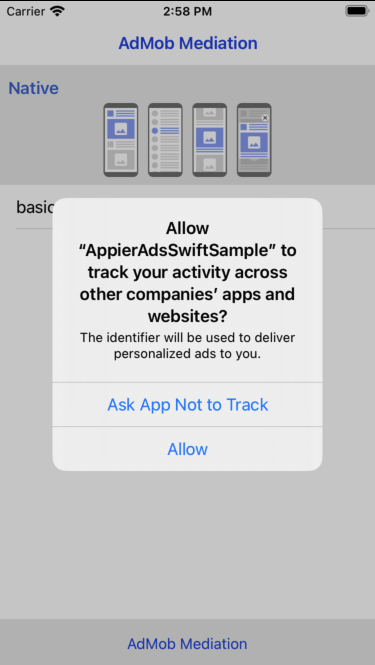
To request App Tracking Transparency authorization for the IDFA, add the NSUserTrackingUsageDescription key to your Info.plist with a message describing how you use it. For example:
<key>NSUserTrackingUsageDescription</key>
<string>The identifier will be used to deliver personalized ads to you.</string>
To present the App Tracking Transparency dialog, call requestTrackingAuthorization. We recommend waiting for the completion callback before loading ads, so that if the user grants permission, the Appier Ads SDK can use the IDFA in ad requests.
Here's an example of calling requestTrackingAuthorization in your AppDelegate:
import AppTrackingTransparency

@main
class AppDelegate: UIResponder, UIApplicationDelegate {
    func applicationDidBecomeActive(_ application: UIApplication) {
        if #available(iOS 14, *) {
            ATTrackingManager.requestTrackingAuthorization { _ in }
        }
    }
}
Your description is displayed in the App Tracking Transparency dialog:
Step 5 - GDPR Consent (Recommended)
To comply with GDPR, we strongly recommend passing the user's consent status to the Appier Ads SDK through APRAds.shared.configuration.gdprApplies, so that Appier knows whether the user's personal information can be used. Without this setting, Appier does NOT apply GDPR by default. Note that ads served without personal information perform worse, which lowers revenue.
Set this only once, ideally at app launch and before initializing the Appier Ads SDK.
import AppierAds

@main
class AppDelegate: UIResponder, UIApplicationDelegate {
    func application(
        _ application: UIApplication,
        didFinishLaunchingWithOptions launchOptions: [UIApplication.LaunchOptionsKey: Any]? = nil
    ) -> Bool {
        // ...
        APRAds.shared.configuration.gdprApplies = true
        // ...
        APRAds.shared.start(completion: nil)
        // ...
        return true
    }
}
Step 6 - Ad Format Integration
6.1 - Native Ads
To render Appier native ads through GAM mediation, pass your GAM ad unit ID (the ad unit path, for example /12345678/my_app_ios_native) through APRAdExtras. The zoneId comes from the custom event Parameter you set in GAM.
Optionally, you can attach your own information to the ad (for example, which screen or placement requested it) by passing any value through the .appInfo key of APRAdExtras. You receive the same value back with the loaded native ad and in the event callbacks.
import AppierAds
import GoogleMobileAds
import AppierAdsAdMobMediation

class GAMNativeViewController: UIViewController, NativeAdLoaderDelegate {
    private var adLoader: AdLoader!

    func loadNativeAd() {
        // Register APRAdMobAdEventDelegate (optional, see below)
        APRAdMobAdManager.shared.eventDelegate = self

        // Set APRAdExtras
        let appierExtras = APRAdExtras()
        appierExtras.set(key: .adUnitId, value: "<your_ad_unit_id_from_gam>")
        appierExtras.set(key: .appInfo, value: ["placement": "home_feed"])  // (Optional) your own information, any value

        // Build Request
        adLoader = AdLoader(
            adUnitID: "<your_ad_unit_id_from_gam>",
            rootViewController: self,
            adTypes: [.native],
            options: nil)
        adLoader.delegate = self

        // Load Ad
        let request = AdManagerRequest()
        request.register(appierExtras)
        adLoader.load(request)
    }
}
Google Mobile Ads delivers the loaded native ad through the adLoader delegate method. Create a NativeAdView to render the Appier native ad, and populate its asset views (headline, body, icon, media, and so on) from the native ad. For more details, see Google's Native ads guide.
For Appier ads, bind the advertiserView of your NativeAdView to a UIImageView: Appier provides an advertiser icon (instead of advertiser text) that links to Appier's advertising policy.
import GoogleMobileAds
import AppierAdsAdMobMediation

extension GAMNativeViewController {
    func adLoader(_ adLoader: AdLoader, didReceive nativeAd: NativeAd) {
        // `nativeAdView` is the NativeAdView you created to display this ad.

        // when the advertiser name is `Appier`, the ad is provided by Appier.
        if let advertiser = nativeAd.advertiser, advertiser == APRAdMobMediation.shared.advertiserName {
            // We provide advertiser image for user to get our advertising policy.
            (nativeAdView.advertiserView as? UIImageView)?.image = nativeAd.extraAssets?[APRAdMobMediation.shared.advertiserIcon] as? UIImage

            // Get the information you passed through .appInfo of APRAdExtras.
            let appInfo = nativeAd.extraAssets?[APRAdMobMediation.shared.appInfo] as? [String: String]
        }

        // ...
        (nativeAdView.headlineView as? UILabel)?.text = nativeAd.headline
        (nativeAdView.bodyView as? UILabel)?.text = nativeAd.body
        (nativeAdView.callToActionView as? UIButton)?.setTitle(nativeAd.callToAction, for: .normal)
        (nativeAdView.iconView as? UIImageView)?.image = nativeAd.icon?.image
        nativeAdView.mediaView?.mediaContent = nativeAd.mediaContent

        // Associate the native ad view with the native ad object. This is
        // required to make the ad clickable.
        // Note: this should always be done after populating the ad views.
        nativeAdView.nativeAd = nativeAd
    }

    func adLoader(_ adLoader: AdLoader, didFailToReceiveAdWithError error: Error) {
        // Handle the failure, e.g. hide the ad slot.
    }
}
Appier provides APRAdMobAdEventDelegate, which notifies your app after the Appier Ads SDK records impression and click events. Set APRAdMobAdManager.shared.eventDelegate before loading the ad, as shown above. Only one delegate can be active at a time.
extension GAMNativeViewController: APRAdMobAdEventDelegate {
    func onNativeAdImpressionRecorded(nativeAd: APRAdMobNativeAd) {
        print("adunit id: \(nativeAd.adUnitId)")  // Get ad unit id
        print("zone id: \(nativeAd.zoneId)")  // Get zone id
        let appInfo = nativeAd.appInfo as? [String: String]  // Get the information you passed through .appInfo of APRAdExtras
    }

    func onNativeAdImpressionRecordedFailed(nativeAd: APRAdMobNativeAd, error: APRError) {}

    func onNativeAdClickedRecorded(nativeAd: APRAdMobNativeAd) {}

    func onNativeAdClickedRecordedFailed(nativeAd: APRAdMobNativeAd, error: APRError) {}
}
6.2 - Native Video Ads
Appier native video ads use the same native ad flow, so no extra request setup is needed. A video ad is a regular NativeAd whose mediaContent contains video, and it plays inside the MediaView of your NativeAdView.
- Make sure your NativeAdView contains a MediaView, and assign
nativeAd.mediaContentto it, as shown in the example above. - Use
nativeAd.mediaContent.hasVideoContentto check whether the ad contains video, andnativeAd.mediaContent.aspectRatioto size the MediaView. - For video ads,
nativeAd.imagesstill contains the main image, which is also used as the video poster. - The Appier Ads SDK manages playback. The video plays automatically when the MediaView is visible and starts muted; users can toggle sound with the mute button on the video. Tapping the video opens the ad's destination.
- Custom playback controls through the Google Mobile Ads VideoController (play, pause, mute) are not supported for Appier ads.
Updated 8 days ago